
Note:
With the Zeta Login integration, you create and manage users in Zeta Login. This is where you set the user’s general profile details.
What’s managed in Zeta Login
- General user properties such as language, currency, and email address. These values appear in Selligent under the Personal tab.
- Access to applications such as Loyalty, Grow, and Selligent.
What this means in Selligent:
- The Personal tab in Selligent is read-only. To update language, currency, or email, make the change in Zeta Login.
- Most permissions are still configured in Selligent, including access to Selligent-specific modules such as Site, Recommendations, and Data Studio.
Permissions are sets of rights to access and work in the different modules. The permissions are defined in so called permission sets. After their creation, permission sets can be assigned to groups (they apply to users in those groups and for a selection of Business units).
Permission sets are defined as user roles, such as Template creator, Email designer, Full Access, etc.
The following roles are created by the system and cannot be deleted :
- Business unit admin — Is used for Selligent by Zeta and Site.
For Selligent by Zeta : Has only access to the Business units tab in the Admin Configuration section of Selligent by Zeta. There, the admin can define audiences, languages and mail domains, together with endpoints and data integration for Business unit(s). This user role has no other rights, and can for example not create new users or configure permission sets.
For Site : Has access to the Configuration section in Site, to setup Universes (and Labels).
- System admin — Has all configuration rights in the Admin Configuration section of Selligent by Zeta. This user role also includes the Business unit admin rights.
Note: The default permission sets are not visible in the permissions overview, but can be selected directly when assigning permissions to groups.
The Permissions overview shows all permission sets that are configured.
The overview can be sorted by clicking on a column header.
The Search field at the top-right
allows searching in the list of permission sets based on name.
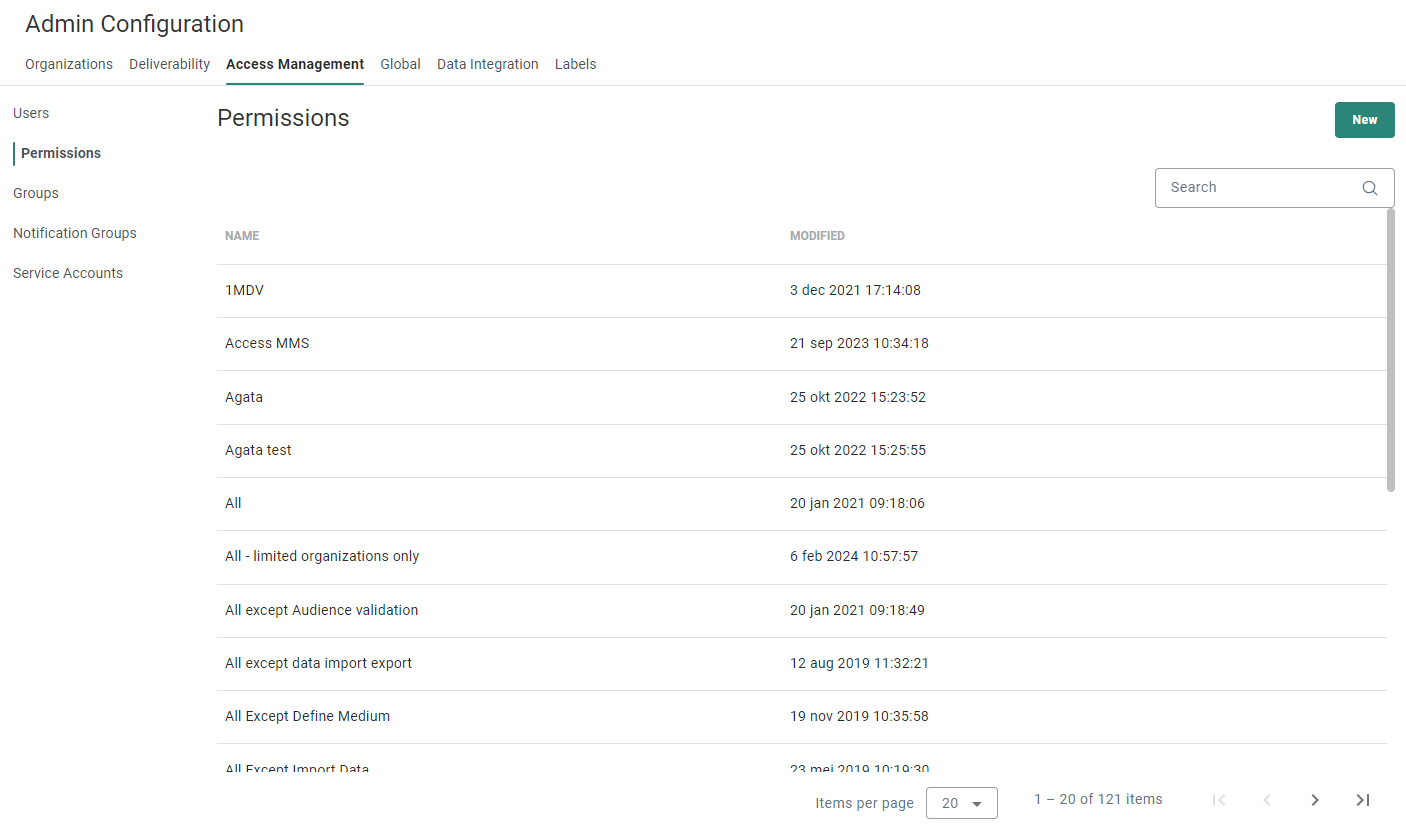
From this overview you can
- create a new permission set — see below.
- edit an existing permission set — by clicking on the name of a permission set (shown in the first column). The properties are then displayed in a right sliding panel.
- delete an existing permission set — by clicking on the garbage bin icon at the end of a line.
Note: For customers
migrating from Campaign V6 to Selligent by Zeta, all their users and
their permission sets will be migrated to Selligent by Zeta.
These users have permissions assigned that correspond to their current roles in Campaign.
Their permissions are automatically set for all Business units.
Users that have the right to modify user rights in Campaign will automatically
be System Administrators in Selligent by Zeta.
Create a permission set
To create a new permission, click on the New button
at the top-right.
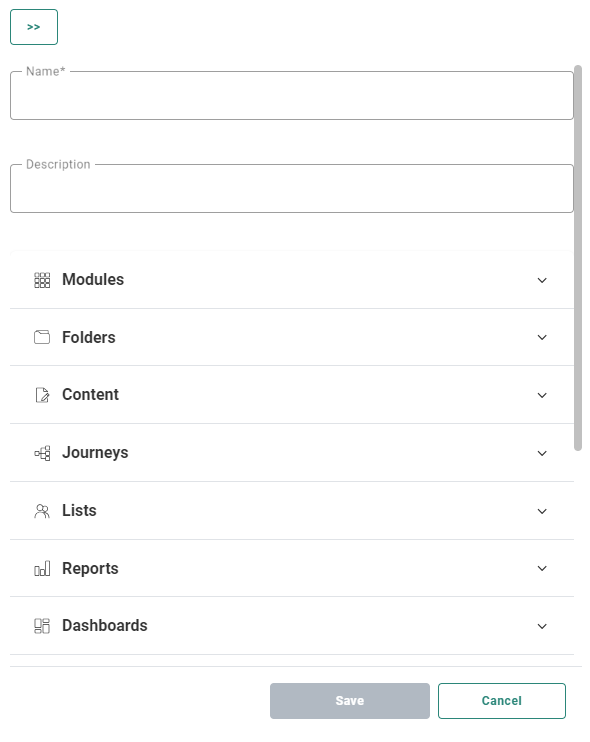
The following properties can be configured:
- Permission Name* — Provide a name for the permission set that accurately reflects what the permission represents. (e.g., Journey Designer, Asset Creator, etc.)
- Description — You can provide an optional description for the permission.
- Permission Configuration — Permissions are split over the different Selligent chapters and functions: Modules, Folders, Content, Journeys, Lists, Reports, Dashboards, Library, Data Exchange,Cadence and Admin Configuration.
Additionally, access to personal data can be restricted.
When the Site tool is being used, specific Site-permissions can also be defined.
For each section, a set of rights can be defined (may vary per section).- Launch right — The right to access a module/tool.
- Access right — Refers to the right to view, create, delete or edit the referenced element.
In case Approval management is activated, Content access rights also refer to the right to request an approval for the content. - Publish right — Refers to the right to publish an element or stop the execution (of a journey in this case).
In case Approval management is activated on the environment, Content publish rights also refer to the right to approve content. - Read-only right — Only allows to view the referenced element. No changes are allowed. The read-only permissions are the dominant ones when multiple permission sets with different access levels are assigned to a group.
Selecting read-only for an element automatically deselects its other rights.
Note:
When activating the publish right, the access right is automatically set for that item (as a user needs access in order to publish).
The other way around, when deactivating the access right, the publish right is automatically deselected too for that item (as a user needs access in order to publish)
Select/deselect the checkboxes to activate/deactivate the rights (or click on the Select all/Deselect all button to select/deselect all the checkboxes at once for a chapter).
 Modules
The Launch right defines if a module is shown in the Module menu in the top right of the toolbar. (Note that the modules listed here depend on what has been activated for each customer environment).
- Campaign reporting
- Campaign and Renderers API explorer (includes Campaign reporting)
- Consumer Information Management
- Grow
- Loyalty
- Recommendations
- Selligent (includes API Explorer)
- Site
Note: Selligent Data Studio is not included in the list of Modules as this is activated in a different way. Contact Zeta to activate Selligent Data Studio.
 Folders
Activating the Folder rights provides access to the folder rights setup and use.
When the permission is set for a group and a Business unit, the group has by default access only to the root folder. The administrator can then start setting the folder rights.
When the permission is not set for a group, the group has access to all folders as no folder rights apply to them.
 Content
Provides Access, Read-only and Publish rights to the different types of content.
Note: Permission behavior depends on how rights are configured.
- Read-only gives users view-only access. Users can browse content, analyze content, preview content, and send test messages. They cannot create, edit, save, delete, convert, approve, publish, or otherwise modify content.
Read-only rights can apply to specific content types or to all content types. If read-only rights apply to all content types, users cannot create new content and the New button is disabled.
If read-only rights apply only to specific content types, the New button remains available on the Content overview page. Users can still create content types for which they have the required access rights.
Users with read-only access to content can still select the content asset in a journey, even if they do not have access to the content itself. However, users cannot edit the selected content unless they also have the required content access rights.
- Access gives users full edit rights for content. Users can create, edit, save, validate, preview, test, delete, convert, and work with approval workflows.
- Publish gives users the right to publish content, which makes the content available for use in journeys.
- Copy email cross Business units — Allows messages to be copied outside the Business unit. There are several requirements to be able to copy to another Business unit. More details can be found here.
- Email — If access is given to emails but not templates, it is not possible to convert an email to a template.
- Live Content — This provides the right to manage the Live Content.
- MMS — Rights to manage MMS messages.
- Mobile Message — Rights to manage mobile messages (push + in-app).
- Pages — Rights to manage pages. This includes HTML and API response pages.
- Quick Start — Access to Quick Starts allows setting an existing email as a Quick Start as well as editing, saving and validating the Quick Start message.
Read-only rights for Quick Starts allow viewing and using the Quick Starts to create a new message from.
Note that you also need additional Access rights for Email to be able to convert an email to a Quick Start as well as when creating a new email from a Quick Start. Quick Starts are a specific type of email and permissions for Quick Start need to be combined with permissions for Email. - RCS — Rights to manage RCS messages.
- SMS — Rights to manage SMS messages.
- Templates (only email) — If access is given to templates but not email, it is not possible to convert a template to an email.
 Journeys
Provides Read-only, Access and Publish rights to the different types of journeys that can be created as well as the features in journeys that require explicit access.
- Audience Validation — Determines if another pop-up confirmation is required upon journey launch (see usage here).
- Batch execution - Message — Rights to manage (Single & Recurring) Batch Journey executions. All of these message channels are covered: Email, Mobile, SMS, MMS, RCS.
- Batch execution - Template — Rights to manage Single Batch Journey executions, based on email templates.
- Custom Channels — Access rights to Custom Channels determines if you can create Custom Components of type Custom Channel in the Data Exchange chapter.
When no access is given, the option Custom Channel is not displayed in the drop-down in the Data Exchange chapter. However, you can still use Custom Channels in journeys. - Custom Journeys — With Read-only rights, the user can see and open Custom Journeys (in read-only mode) in the Journeys chapter, and view journey content, properties, and related report status.
Access allows to create, edit, and save Custom Journeys.
Publish is needed to publish Custom Journeys, start/pause/cancel their execution, and delete/duplicate them. - Inbound — Access to Inbound determines if you can manage Inbound channels in the Data Exchange Chapter, and use the Inbound Event Component in Custom Journeys.
- Transactional Journeys — Transactional Journeys are used for real-time, event-driven messages that are triggered through the API instead of scheduled like batch journeys. Each Transactional Journey is linked to a published transactional message and exposed through an API name. This lets external systems send messages to individual recipients, or update a profile and send a message in one call.
Because changes go live immediately, Transactional Journeys do not support a separate design-only permission level. Permissions are limited to Read-only access or Publish access.- Read-only lets users view Transactional Journeys and API examples only.
- Publish lets users fully manage Transactional Journeys. This includes creating, editing, activating, deactivating, and deleting journeys. Every save automatically publishes the changes to runtime.
Note:
- Read-only rights can be applied to specific journey types or all types. When applied to all, it is not possible to create new journeys and the New button will be disabled.
If read-only is applied to only certain types, the New button on the journey overview page remains visible and journeys of other types can still be created.
- Access rights for journeys implies create, configure, schedule and set properties.
- Publish rights not only make a journey available for execution, it also influences if you can delete, activate, pause or set the journey offline or not.
For example, Publish rights are required for Custom Journeys, Transactional Journeys, Single Batch, Recurring Batch and AB Journeys to allow the user to delete them.
 Lists
Lists
Users can be given Read-only, Access and Sharing rights to any type of list.
- Read-only rights give the user only the permission to use existing lists in Content and Journeys, and to open and view them in the Lists chapter without the right to make any changes nor creating new ones.
- Access rights imply the right to create and manage lists, data, relations, segments, etc.
- Sharing rights can be set allowing the user to share lists with another Business unit.
Note: When Read-only is selected, the Access and Sharing checkboxes are automatically cleared, as they can't be combined.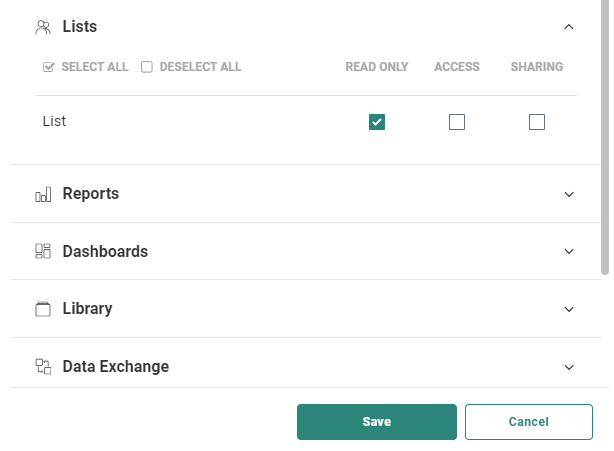
 Reports
Provides access to and use of Reports.
 Dashboards
Provides access to and use of Dashboards.
 Library
Controls access to the Library chapter. Users need at least one Library permission to view the chapter. The tabs they can access depend on their specific permissions.
- Content Blocks — Read-only allows users to view Content Blocks in the Library, but not make changes. Read-only is the minimum permission to use Content Blocks in a message.
Access allows users to view, create, edit, and manage Content Blocks in the Library, as well as use Content Blocks in a message.
Publish allows users to publish changes to Content Blocks. - Dictionaries and Labels — Manage translation dictionaries and label entries. Even without enabling the Access right here, you can still use labels and dictionaries in messages to personalize the content.
- Files — Controls the Files tab in Library (local file storage: Global and Business unit folders).
With Read-only, users can browse, download, and select existing files (such as images). They cannot upload or manage folders/files.
With Access, users have full file and folder management, including upload, move, rename and delete capabilities. - Website Placements (only available when integrations are set up with Site) — This right gives users the ability to manage all Site Placements for that universe, as well as view their usage.
 Data Exchange
The Access right implies the right to manage one of the following:
- Custom Components — Right to create, edit, copy, delete, and validate/test Custom Components (Web service, Stored Procedure, and CRM Message Sync types).
If no Access right is given here, users can still use existing Custom Components in a Custom Journey, but cannot create or manage them in Data Exchange.
To create and manage a Custom Component of type Custom Channel, you need Access rights here in combination with the Custom Channels Access right in the Journeys permissions section. - Data Explorer — Right to query user and system tables in the Data Explorer. Only available when the Data Explorer is activated (on request).
- Data Syncs — Right to create, edit, configure, and manage CRM Data Syncs.
- Data Export — Right to create, edit, delete, schedule, and execute Data Exports.
- Data Import — Right to create, edit, delete, schedule, and execute Data Imports. This permission also enables list-level and segment-level data import actions in the Lists chapter.
- Tasks — Right to create, edit, delete, schedule, and execute all types of tasks (SQL, Import, Export, and Batch).
Define Medium can additionally be granted for Data Export, Data Import, and Tasks. This right allows users to define their own transport mediums (FTP/SFTP, URL, Repository, etc.) when creating exports, imports, or tasks.
Without it, only predefined mediums can be selected. It also blocks changes to existing configurations that use non-predefined mediums.
 Cadence
The Access right grants full management of cadence plans in the Cadence chapter: create, edit, delete, and configure plans, and add or remove journeys from those plans.
 Site
Site
A matrix allows defining detailed rights for the different entities within the Site tool: Carts, Exports, Offers, Reporting Segments, Tags.
- Access grants create, update, delete, and test rights.
- Clear Values (for Tags only) allows to clear previously collected tag values.
- Queue (for Exports only) allows to manually queue/trigger exports.
- Access to the Site configuration requires Business unit Admin rights.
Note: All users that can access segments or offers can also create labels for segments/offers.
Important notes:
- User rights will still be configurable in the Site module via the Configuration chapter.
Only when Site permissions are updated for a specific user in Selligent, the rights will disappear in Site for this specific user. From that point forward, you are expected to manage your Site permissions via Selligent.
- In Site, the Edit my profile menu next to the username (in the top bar) is no longer available when the user opens Site from Selligent.
Profile info can then be updated from the Account details in Selligent.
 Personal Data
By default all users have access to personal data. When access needs to be restricted, the Hide option needs to be checked.
Users with personal data restrictions do not have access to:
- the Data tab for Audience Lists and Data Lists
- the Data tab in Dynamic Segments and Static Segments for Audience Lists and Data Lists
- the Data tab in Custom Events Lists
- count values in the Constraint Builder
 Admin Configuration/Labels
Users can be given Read-only or Access rights to the Asset Labels feature.
- Users with Read-only rights can view labels and their usage in Admin Configuration.
- Users with Access rights can create, edit, and delete labels in Admin Configuration. Also, these users have the ability to create new labels on the fly when assigning them to an asset.
- Everyone, regardless the permission level, can assign labels to assets.
When done, click Save to save the permission set.
The permission set can now be assigned to groups.
 Want to learn more about User Groups & Permissions through video material? Check out the Admin Config learning courses.
Exercises
Try out the following exercises on permissions:
Exercise 1 - we have 2 permission sets, 'Approver' and 'Editor'. We have a 'Parana UK' group of which Carol is a member. Have a look at the following setup:
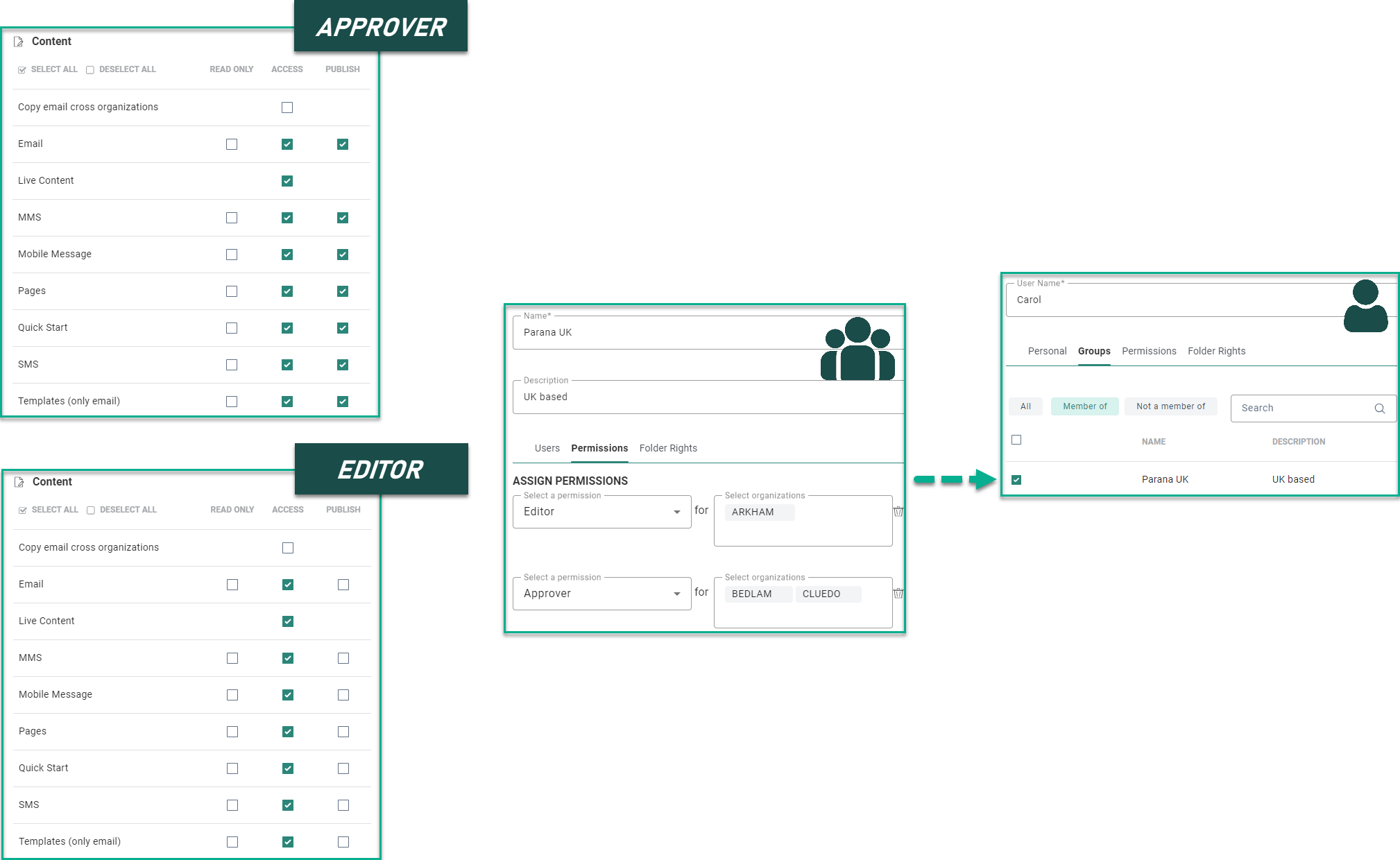
With the above information, try to answer the following questions: Can Carol...
1. ...create a new email for the Arkham?
2. ...update an SMS message in BEDLAM?
3. ...amend Live Content in Arkham?
4. ...publish a Push notification in Arkham?
5. ...convert a template to an email in Bedlam?
6. ...delete a page in Cluedo?
7. ...delete an in-app message in Arkham?
8. ...copy an SMS from Bedlam To Cluedo?
The answers are:
1. Yes - she has access rights to Email as an editor for Arkham.
2. Yes - she has access rights to SMS as an approver for Bedlam.
3. Yes - she has access rights to Live Content as an approver for Arkham.
4. No - she has no publish rights as an editor for Arkham.
5. Yes - she has access rights to email and template as an approver for Bedlam.
6. Yes - she has access rights as an approver for Cluedo.
7. Yes - she has access rights for Mobile messages as an editor in Arkham.
8. No - she can not copy content across Business unit as an approver for Bedlam.
Exercise 2: Here we have added a new group 'Parana US' with user Jean. There are 3 permission sets in this example. Have a look at the following setup:
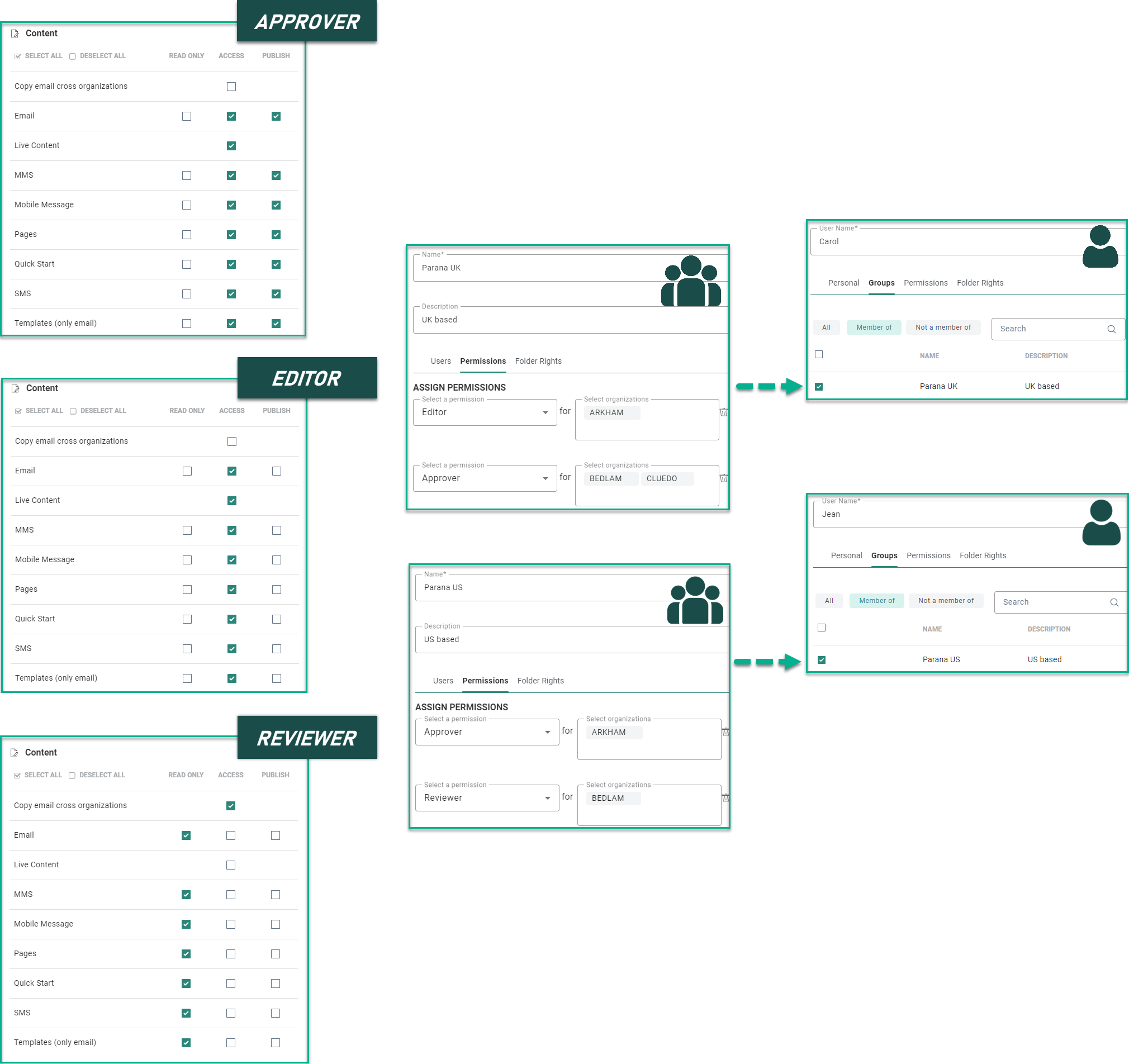
With the above information, try to answer the following questions: Can Jean...
1. ....create an email in Arkham?
2. ....update an SMS message in Bedlam?
3. ... amend Live Content in Cluedo?
4. ... publish a push notification in Arkham?
5. ... delete a template in Bedlam?
6. ... copy a page from Bedlam to Arkham?
The answers are:
1. Yes - she has access rights for email as approver to Arkham.
2. No - she has no access rights for SMS as a reviewer for Arkham.
3. No - she has no rights at all for Cluedo Business unit.
4. Yes - she has publish rights for Mobile messages as an approver for Arkham.
5. No - she has no access rights for templates as a reviewer for Bedlam.
6
. Yes - she can copy content across Business unit as a reviewer for Bedlam and has access rights to pages as an approver for Arkham.
Exercise 3 - We have the same permission sets and groups but our user Hank is part of two groups in this case.
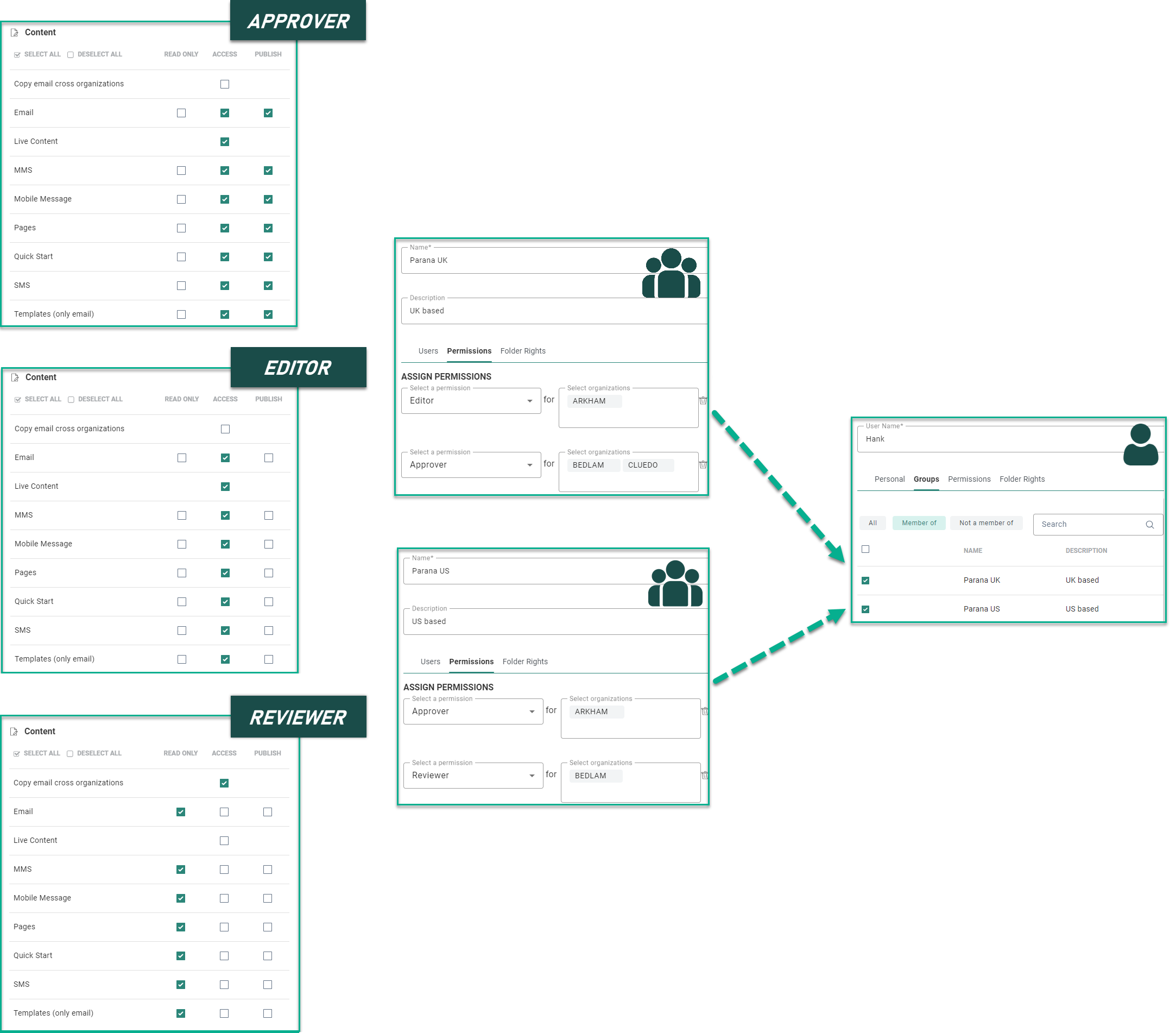
With the above information, can Hank...
1. ... create a new email in Arkham?
2. ... update an SMS message in Bedlam?
3. ... amend Live Content in Cluedo?
4. ... publish a push notification in Arkham?
5. ... delete a template in Bedlam?
6. ... copy a page from Bedlam to Arkham?
The answers are:
1. Yes - the user has access rights to email as an editor for Arkham + as an approver for Arkham.
2. Yes - Bedlam UK Approver grants SMS — Access (and Publish). Bedlam US Reviewer only adds Read-only on SMS, but that does not remove Access from the other group.
3. Yes - the user has access rights to Live Content as an approver for Cluedo.
4. Yes - the user has publish rights for Mobile messages as an approver for Arkham.
5. Yes - Bedlam UK Approver grants Templates — Access. Bedlam US Reviewer only adds Read-only on Templates, but that does not remove Access from the other group.
6. Yes - the user can copy across Business unit as a reviewer for Bedlam + has access rights to pages as an Approver/Editor for Arkham.
Exercise 4 - Following setup defines the rights for a user for the Content and Journeys chapters.
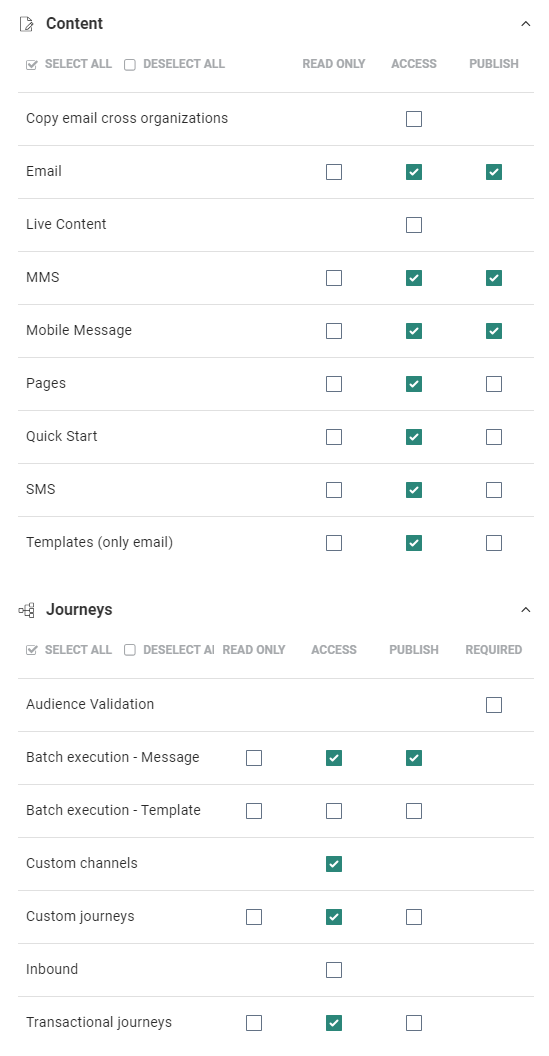
Can you answer the following questions? Can the user...
1. ...create a mobile message for a sale, using a Single Batch Journey to deliver it next week?
2. ...use a template to create an announcement for a Single Batch Journey?
3. ...copy this template to an email , then use this email in a Recurring Batch Journey?
4. ...create a new page, then add this to a new Custom Journey?
5. ...replace an SMS in an existing Custom Journey?
6. ...delete an existing Transactional Journey?
The answers are:
1. Yes - the user has access and publish rights for mobile messages. Publish is required to be able to use the mobile messages in a journey. The user also has access and publish rights for batch execution of messages (in the Journeys chapter).
2. No - the user has no rights for batch execution using templates.
3. Yes - the user has access rights to templates so is allowed to convert it to an email. The user also has access and publish rights for emails and can make the email available for a Recurring Batch Journey. The user also has access and publish rights for batch execution of messages (in the Journeys chapter), so all prerequisites are fulfilled.
4. Yes - the user has access and publish rights to pages and access rights to Custom Journeys (= allowed to create/edit a Custom Journey and add a Page component).
5. Yes - the user has access rights to Custom Journeys and can select a different SMS.
6. No - the user has no publish rights for Transactional Journeys and can hence not delete such a journey.